Permissions Not Granted During Installation
Problem Overview
If the Market Data Google Sheets add-on is installed but functions do not work, menus do nothing, or spreadsheet formulas fail to initialize, the most common cause is missing permissions during the original installation.
Due to a recent change by Google, users can now enable or disable individual permissions during installation.
The Market Data add-on requires all requested permissions to function correctly.
If any permission was left unchecked during install, the add-on cannot run.
Why This Happens
Google recently introduced granular OAuth consent for Google Sheets add-ons.
This means:
- The add-on can be installed without granting all permissions
- Google may not re-prompt for missing permissions afterward
- The add-on cannot execute without full consent
- There is currently no way for the add-on to force the consent screen to reappear
This behavior is enforced by Google and is not controlled by Market Data.
Required Fix: Uninstall and Reinstall the Add-on
At this time, the only reliable solution is to remove the add-on completely and reinstall it while granting all permissions.
Step-by-Step Instructions
- Open Google Sheets
- Go to Extensions → Add-ons → Manage add-ons
- Locate Market Data
- Click Uninstall
- Close the spreadsheet
- Reopen Google Sheets
- Reinstall the Market Data add-on from Google Workspace Marketplace
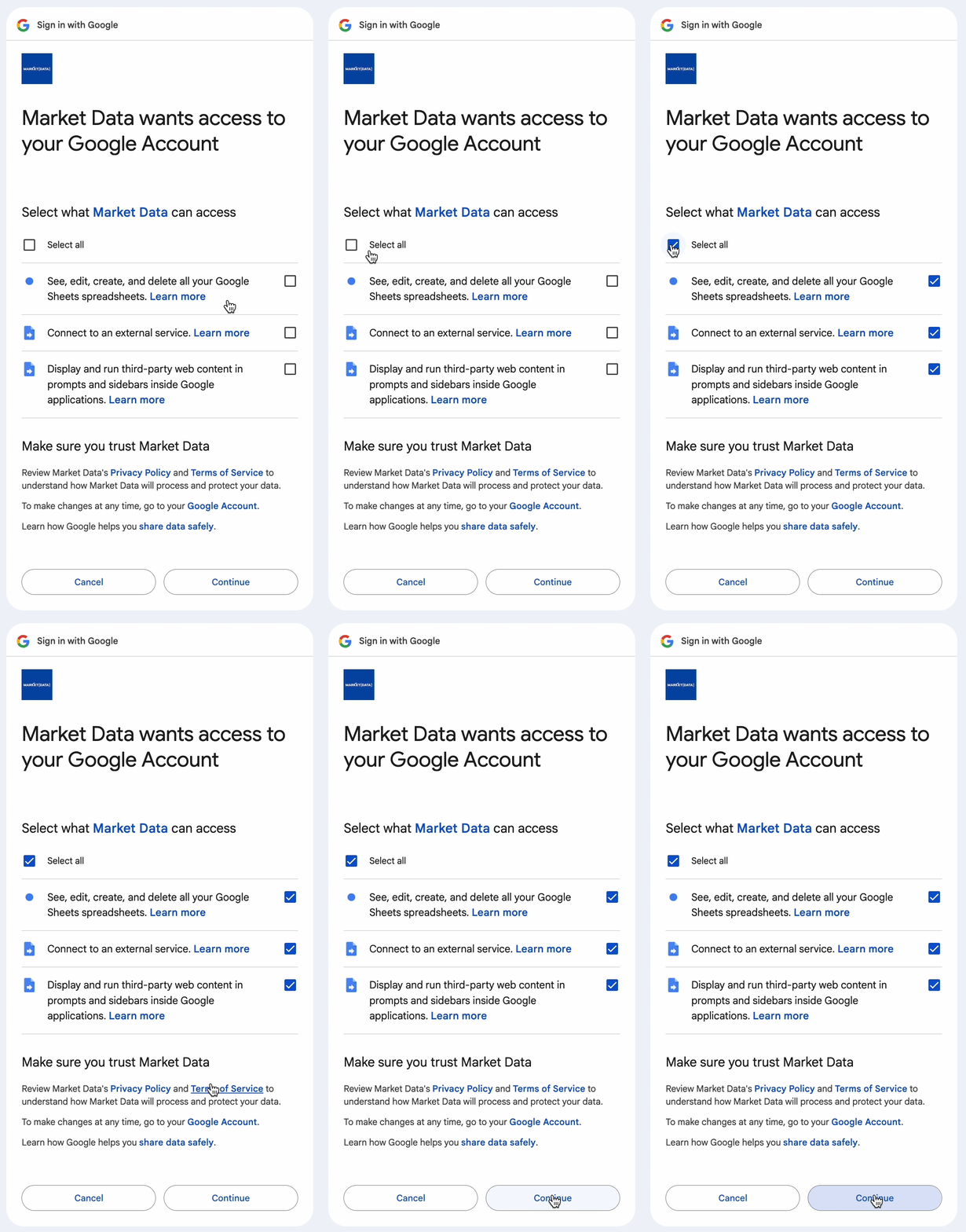
- During installation, when the Google permission screen appears:
- Choose "Select all"
- Ensure all permission toggles are enabled
- Click Continue
Important Notes
- Simply reloading the spreadsheet is not sufficient
- Re-enabling the add-on for a document will not restore missing permissions
- The add-on cannot request additional permissions after installation if they were denied
Until Google provides a way to re-trigger consent reliably, reinstallation is required.
Google Workspace (Company Accounts)
If you are using a Google Workspace account:
- Your organization may restrict third-party add-ons
- Some permissions may be blocked by policy
If permissions cannot be enabled:
- Contact your IT administrator
- Ask them to allow the Market Data add-on
- Confirm all requested permissions are permitted for your account
Key Takeaway
- The add-on must be installed with all permissions enabled
- Partial permission installs will not work
- Reinstallation is currently the only fix
- This behavior is controlled by Google
Still Need Help?
If you have reinstalled the add-on and enabled all permissions but still experience issues, please contact support and include:
- Confirmation that you reinstalled the add-on
- A screenshot of the permission screen
- Whether you are using a personal Google account or Google Workspace
We typically respond within a few hours during market hours.